CONTENT.php Template-parts
here1

How to Download Chassis 3D Models for Your Projects

If you are interested in creating your own vehicles or machines, you might need a chassis 3D model to start with. A chassis is the frame or structure that supports a vehicle or machine, and it is essential for its functionality and stability. A chassis 3D model can help you design, test, and modify your own vehicles or machines, as well as create realistic and immersive animations and renderings of them. In this article, we will show you where to find chassis 3D models online, how to download them, and how to use them for your projects.

Where to Find Chassis 3D Models Online?

There are many websites that offer free or paid chassis 3D models for download. Some of the most popular ones are GrabCAD, 3D CAD Browser, and Sketchfab. These websites have a large collection of chassis 3D models for various types of vehicles and machines, such as cars, trucks, buses, motorcycles, bicycles, karts, buggies, robots, etc. You can browse through their categories and tags, or use their search functions to find the chassis 3D model you want.

GrabCAD

GrabCAD is a community of engineers and designers who share their CAD files online. You can find thousands of chassis 3D models on GrabCAD, mostly in SOLIDWORKS format. You can also join challenges, groups, and projects related to chassis design on GrabCAD. To download a chassis 3D model from GrabCAD, you need to create a free account and join the community. Then, you can click on the download button on the model page and choose the file format you want.

3D CAD Browser

3D CAD Browser is a website that provides high-quality 3D models for various industries and applications. You can find hundreds of chassis 3D models on 3D CAD Browser, in various file formats such as STL, OBJ, FBX, etc. You can also filter the models by software, category, subcategory, date, rating, etc. To download a chassis 3D model from 3D CAD Browser, you need to buy credits or subscribe to a plan. Then, you can add the model to your cart and proceed to checkout.

Sketchfab

Sketchfab is a platform that lets you upload, view, and share 3D models online. You can find thousands of chassis 3D models on Sketchfab, in various file formats such as GLTF, USDZ, etc. You can also view the models in 3D and VR on Sketchfab’s website or app. To download a chassis 3D model from Sketchfab, you need to check the license and attribution of the model. Some models are free to download and use, while others require payment or permission from the author. Then, you can click on the download button on the model page and choose the file format you want.

How to Download Chassis 3D Models from These Websites?

Each website has its own process and requirements for downloading chassis 3D models. However, here are some general steps to follow:

Step 1: Search for the chassis 3D model you want

You can use the search functions of the websites to find the chassis 3D model you want. You can also browse through their categories and tags, or use their filters and sorting options to narrow down your results. You can also look at the previews, thumbnails, and descriptions of the models to get an idea of their quality and details.

Step 2: Check the details and specifications of the model

Before you download a chassis 3D model, you should check its details and specifications, such as:

  • The file format and resolution of the model
  • The size and complexity of the model
  • The license and attribution of the model
  • The compatibility and requirements of the model with your software and hardware
  • The reviews and ratings of the model by other users

You should make sure that the model meets your needs and expectations, and that you have the right to use it for your projects.

Step 3: Choose the file format and resolution you need

Different websites offer different file formats and resolutions for their chassis 3D models. You should choose the file format and resolution that suit your software and hardware, as well as your project goals. For example, if you want to use the model for animation or rendering, you might need a high-resolution model in a format that supports textures and materials. If you want to use the model for design or simulation, you might need a low-resolution model in a format that supports geometry and physics.

Step 4: Download the model to your computer or device

Once you have chosen the file format and resolution you need, you can download the model to your computer or device. Depending on the website, you might need to create an account, join a community, buy credits, subscribe to a plan, or check out a cart before you can download the model. You should also follow the instructions and terms of use of the website when downloading the model. After downloading the model, you should save it in a safe location and unzip it if necessary.

How to Use Chassis 3D Models for Your Projects?

You can use chassis 3D models for various purposes, such as:

Designing your own vehicle or machine

You can use a chassis 3D model as a base or reference for designing your own vehicle or machine. You can modify and customize the shape, size, color, features, and components of the chassis according to your preferences and specifications. You can also add other parts and accessories to complete your vehicle or machine.

Testing and simulating the performance and behavior of your vehicle or machine

You can use a chassis 3D model to test and simulate how your vehicle or machine will perform and behave in different scenarios and conditions. You can apply forces, torques, velocities, accelerations, frictions, collisions, etc. to the chassis and observe its reactions and responses. You can also measure and analyze various parameters such as speed, distance, time, energy, power, etc.

Modifying and customizing your vehicle or machine

You can use a chassis 3D model to modify and customize your existing vehicle or machine. You can change or replace any part or component of the chassis to improve or alter its functionality or appearance. You can also experiment with different configurations and combinations of parts and components to create new or unique vehicles or machines.

Creating realistic and immersive animations and renderings of your vehicle or machine

You can use a chassis 3D model to create realistic and immersive animations and renderings of your vehicle or machine. You can apply textures, materials, lighting, shadows, reflections, etc. to the chassis and make it look more realistic and appealing. You can also animate the movement and interaction of the chassis and other parts and components to make it look more dynamic and lively. You can also add sound effects, music, narration, etc. to enhance the mood and atmosphere of your animation or rendering.

Conclusion

A chassis 3D model is a useful and versatile tool for anyone who wants to create their own vehicles or machines. You can find chassis 3D models online from various websites, such as GrabCAD, 3D CAD Browser, and Sketchfab. You can download them in different file formats and resolutions, depending on your needs and preferences. You can use them for designing, testing, modifying, and animating your vehicles or machines, as well as creating realistic and immersive animations and renderings of them. We hope this article has helped you learn how to download chassis 3D models for your projects.

FAQ

  • What are the benefits of using chassis 3D models?
  • Some of the benefits of using chassis 3D models are:

    • They can save you time and money by providing you with a ready-made frame or structure for your vehicle or machine.
    • They can help you improve your skills and creativity by allowing you to design, test, and modify your own vehicles or machines.
    • They can help you showcase your work and ideas by enabling you to create realistic and immersive animations and renderings of your vehicles or machines.
  • What are the challenges of using chassis 3D models?
  • Some of the challenges of using chassis 3D models are:

    • They can be difficult to find or download if they are not available or compatible with your software or hardware.
    • They can be difficult to use or modify if they are not well-designed or documented.
    • They can be difficult to integrate or combine with other parts and components if they are not compatible or consistent.
  • How to choose the best chassis 3D model for your project?
  • To choose the best chassis 3D model for your project, you should consider the following factors:

    • The type and purpose of your vehicle or machine
    • The quality and details of the chassis 3D model
    • The file format and resolution of the chassis 3D model
    • The license and attribution of the chassis 3D model
    • The reviews and ratings of the chassis 3D model by other users
  • How to learn more about chassis design and modeling?
  • To learn more about chassis design and modeling, you can:

    • Read books, articles, blogs, tutorials, etc. on chassis design and modeling
    • Watch videos, webinars, podcasts, etc. on chassis design and modeling
    • Take courses, workshops, seminars, etc. on chassis design and modeling
    • Join communities, forums, groups, etc. on chassis design and modeling
    • Ask questions, seek feedback, share ideas, etc. on chassis design and modeling
  • Where to get help or support for using chassis 3D models?
  • To get help or support for using chassis 3D models, you can:

    • Contact the author or provider of the chassis 3D model
    • Contact the customer service or technical support of the website where you downloaded the chassis 3D model
    • Contact the developer or manufacturer of the software or hardware where you use the chassis 3D model
    • Contact a professional or expert in chassis design and modeling
    • Contact a friend or colleague who has experience in using chassis 3D models

    bc1a9a207d

    here2
CONTENT.php Template-parts
here1

Download Ziphttps://shurll.com/2uTeGS

How to Download Air Radio and Enjoy Live ATC Communications

If you are a fan of aviation, you might be interested in listening to live conversations between pilots and air traffic controllers near many airports around the world. This can give you a glimpse into the fascinating world of aviation, as well as help you learn more about the procedures and terminology used by professionals. In this article, we will show you how to download and use Air Radio, a free app that lets you tune in to live ATC communications on your device.

What is Air Radio?

A brief introduction to the app and its features

Air Radio is an app that provides a quick and easy way to listen in on live ATC communications from various airports around the world. It is powered by LiveATC.net, the world’s largest network of streaming audio feeds focused solely on aviation-related communications. The app features over 1,200 airports and almost 3,000 different audio feeds, covering both civil and military aviation.

The benefits of listening to live ATC communications

Listening to live ATC communications can have many benefits for aviation enthusiasts, such as:

  • Learning more about the operations and regulations of different airports and airspace
  • Hearing how pilots and controllers communicate effectively and professionally
  • Discovering new aircraft types, airlines, and destinations
  • Experiencing the thrill and excitement of aviation from a different perspective
  • Staying informed about the status and delays of flights

How to Download and Install Air Radio on Your Device

The steps for downloading and installing the app on Android devices

If you have an Android device, you can download and install Air Radio from the Google Play Store. Here are the steps:

  1. Open the Google Play Store app on your device.
  2. Search for “AirRadio” or use this link: [7](https://play.google.com/store/apps/details?id=com.w.waplay)
  3. Tap on the app icon and then tap on “Install”.
  4. Wait for the app to download and install on your device.
  5. Open the app and grant it the necessary permissions.
  6. Enjoy listening to live ATC communications!

The steps for downloading and installing the app on iOS devices

If you have an iOS device, you can download and install Air Radio from the App Store. Here are the steps:

  1. Open the App Store app on your device.
  2. Search for “LiveATC Air Radio” or use this link: [4](https://apps.apple.com/us/app/liveatc-air-radio/id317809458)
  3. Tap on the app icon and then tap on “Get”.
  4. Wait for the app to download and install on your device.
  5. Open the app and grant it the necessary permissions.
  6. Enjoy listening to live ATC communications!

How to Use Air Radio to Listen to Live ATC Communications

How to browse and select channels by location, category, or popularity

Air Radio

Air Radio allows you to browse and select channels by location, category, or popularity. You can use the following methods to find the channels you want to listen to:

  • By location: You can use the map function to zoom in and out of different regions and countries, and tap on the airport icons to see the available channels. You can also use the search function to enter the name or code of an airport, city, or country, and see the matching results.
  • By category: You can use the menu function to access different categories of channels, such as tower, ground, approach, departure, center, en route, oceanic, emergency, and more. You can also filter the channels by type of aviation, such as civil or military.
  • By popularity: You can use the menu function to access the top 50 channels by popularity, based on the number of listeners. You can also see the number of listeners for each channel on the main screen.

How to add channels to your favorites list for quick access

If you find a channel that you like and want to listen to again, you can add it to your favorites list for quick access. Here is how:

  1. Tap on the channel that you want to add to your favorites.
  2. Tap on the star icon at the top right corner of the screen.
  3. The channel will be added to your favorites list, which you can access from the menu function.
  4. To remove a channel from your favorites list, tap on the star icon again.

How to use the nearby function to find airports near you

If you want to listen to live ATC communications from airports near your location, you can use the nearby function. Here is how:

  1. Make sure that your device’s location service is enabled and that you have granted permission to Air Radio.
  2. Tap on the nearby icon at the bottom left corner of the screen.
  3. The app will show you a list of airports within a 100-mile radius of your location, along with their distance and direction from you.
  4. Tap on any airport to see the available channels and start listening.

Some Tips and Tricks for Getting the Most Out of Air Radio

How to adjust the volume and balance of the audio

Sometimes, you might want to adjust the volume and balance of the audio to suit your preferences. Here is how:

  1. Tap on the settings icon at the top left corner of the screen.
  2. Tap on “Audio Settings”.
  3. Use the sliders to adjust the volume and balance of the audio. You can also enable or disable background noise reduction and automatic gain control.
  4. Tap on “Done” to save your changes.

How to use the sleep timer and alarm functions

If you want to listen to live ATC communications while falling asleep or waking up, you can use the sleep timer and alarm functions. Here is how:

  1. Tap on the settings icon at the top left corner of the screen.
  2. Tap on “Sleep Timer” or “Alarm”.
  3. Select a channel that you want to listen to.
  4. Select a time that you want the app to stop or start playing.
  5. Tap on “Set” to activate the function.

How to share your favorite channels with others

If you want to share your favorite channels with others, you can use the share function. Here is how:

  1. Tap on a channel that you want to share.
  2. Tap on the share icon at the top right corner of the screen.
  3. Select an app or service that you want to use for sharing, such as email, text message, social media, etc.
  4. Add a message if you want and send it to your contacts.

Conclusion and FAQs

Air Radio is a great app for aviation enthusiasts who want to listen in on live ATC communications from various airports around the world. It is easy to download, install, and use, and it offers a wide range of channels and features. Whether you want to learn more about aviation, hear how pilots and controllers communicate, discover new aircraft types and destinations, or simply enjoy the thrill and excitement of aviation from a different perspective, Air Radio can provide you with hours of entertainment and education. Download Air Radio today and enjoy live ATC communications!

Here are some frequently asked questions about Air Radio:

Q: Is Air Radio free to use?

A: Yes, Air Radio is free to use, but it is supported by ads. You can remove the ads by purchasing the premium version of the app for a one-time fee of $3.99.

Q: How often are the channels updated?

A: The channels are updated regularly by LiveATC.net, the provider of the audio feeds. However, some channels may be temporarily unavailable due to technical issues or changes in the source. You can check the status of the channels on the LiveATC.net website.

Q: Can I record and save the audio from the channels?

A: No, Air Radio does not allow you to record and save the audio from the channels. This is because of the legal and ethical issues involved in recording and distributing ATC communications without permission. However, you can listen to archived recordings of some channels on the LiveATC.net website.

Q: Can I request a channel that is not available on Air Radio?

A: Yes, you can request a channel that is not available on Air Radio by contacting LiveATC.net. However, there is no guarantee that your request will be fulfilled, as it depends on the availability and feasibility of providing the audio feed from the source.

Q: What are the minimum requirements for using Air Radio?

A: To use Air Radio, you need a device that runs on Android 5.0 or higher, or iOS 10.0 or higher. You also need a stable internet connection, preferably Wi-Fi or 4G, to stream the audio from the channels.

bc1a9a207d

here2
CONTENT.php Template-parts
here1

How to Download Chassis 3D Models for Your Projects

If you are interested in creating your own vehicles or machines, you might need a chassis 3D model to start with. A chassis is the frame or structure that supports a vehicle or machine, and it is essential for its functionality and stability. A chassis 3D model can help you design, test, and modify your own vehicles or machines, as well as create realistic and immersive animations and renderings of them. In this article, we will show you where to find chassis 3D models online, how to download them, and how to use them for your projects.

Where to Find Chassis 3D Models Online?

There are many websites that offer free or paid chassis 3D models for download. Some of the most popular ones are GrabCAD, 3D CAD Browser, and Sketchfab. These websites have a large collection of chassis 3D models for various types of vehicles and machines, such as cars, trucks, buses, motorcycles, bicycles, karts, buggies, robots, etc. You can browse through their categories and tags, or use their search functions to find the chassis 3D model you want.

GrabCAD

GrabCAD is a community of engineers and designers who share their CAD files online. You can find thousands of chassis 3D models on GrabCAD, mostly in SOLIDWORKS format. You can also join challenges, groups, and projects related to chassis design on GrabCAD. To download a chassis 3D model from GrabCAD, you need to create a free account and join the community. Then, you can click on the download button on the model page and choose the file format you want.

3D CAD Browser

3D CAD Browser is a website that provides high-quality 3D models for various industries and applications. You can find hundreds of chassis 3D models on 3D CAD Browser, in various file formats such as STL, OBJ, FBX, etc. You can also filter the models by software, category, subcategory, date, rating, etc. To download a chassis 3D model from 3D CAD Browser, you need to buy credits or subscribe to a plan. Then, you can add the model to your cart and proceed to checkout.

Sketchfab

Sketchfab is a platform that lets you upload, view, and share 3D models online. You can find thousands of chassis 3D models on Sketchfab, in various file formats such as GLTF, USDZ, etc. You can also view the models in 3D and VR on Sketchfab’s website or app. To download a chassis 3D model from Sketchfab, you need to check the license and attribution of the model. Some models are free to download and use, while others require payment or permission from the author. Then, you can click on the download button on the model page and choose the file format you want.

How to Download Chassis 3D Models from These Websites?

Each website has its own process and requirements for downloading chassis 3D models. However, here are some general steps to follow:

Step 1: Search for the chassis 3D model you want

You can use the search functions of the websites to find the chassis 3D model you want. You can also browse through their categories and tags, or use their filters and sorting options to narrow down your results. You can also look at the previews, thumbnails, and descriptions of the models to get an idea of their quality and details.

Step 2: Check the details and specifications of the model

Before you download a chassis 3D model, you should check its details and specifications, such as:

  • The file format and resolution of the model
  • The size and complexity of the model
  • The license and attribution of the model
  • The compatibility and requirements of the model with your software and hardware
  • The reviews and ratings of the model by other users

You should make sure that the model meets your needs and expectations, and that you have the right to use it for your projects.

Step 3: Choose the file format and resolution you need

Different websites offer different file formats and resolutions for their chassis 3D models. You should choose the file format and resolution that suit your software and hardware, as well as your project goals. For example, if you want to use the model for animation or rendering, you might need a high-resolution model in a format that supports textures and materials. If you want to use the model for design or simulation, you might need a low-resolution model in a format that supports geometry and physics.

Step 4: Download the model to your computer or device

Once you have chosen the file format and resolution you need, you can download the model to your computer or device. Depending on the website, you might need to create an account, join a community, buy credits, subscribe to a plan, or check out a cart before you can download the model. You should also follow the instructions and terms of use of the website when downloading the model. After downloading the model, you should save it in a safe location and unzip it if necessary.

How to Use Chassis 3D Models for Your Projects?

You can use chassis 3D models for various purposes, such as:

Designing your own vehicle or machine

You can use a chassis 3D model as a base or reference for designing your own vehicle or machine. You can modify and customize the shape, size, color, features, and components of the chassis according to your preferences and specifications. You can also add other parts and accessories to complete your vehicle or machine.

Testing and simulating the performance and behavior of your vehicle or machine

You can use a chassis 3D model to test and simulate how your vehicle or machine will perform and behave in different scenarios and conditions. You can apply forces, torques, velocities, accelerations, frictions, collisions, etc. to the chassis and observe its reactions and responses. You can also measure and analyze various parameters such as speed, distance, time, energy, power, etc.

Modifying and customizing your vehicle or machine

You can use a chassis 3D model to modify and customize your existing vehicle or machine. You can change or replace any part or component of the chassis to improve or alter its functionality or appearance. You can also experiment with different configurations and combinations of parts and components to create new or unique vehicles or machines.

Creating realistic and immersive animations and renderings of your vehicle or machine

You can use a chassis 3D model to create realistic and immersive animations and renderings of your vehicle or machine. You can apply textures, materials, lighting, shadows, reflections, etc. to the chassis and make it look more realistic and appealing. You can also animate the movement and interaction of the chassis and other parts and components to make it look more dynamic and lively. You can also add sound effects, music, narration, etc. to enhance the mood and atmosphere of your animation or rendering.

Conclusion

A chassis 3D model is a useful and versatile tool for anyone who wants to create their own vehicles or machines. You can find chassis 3D models online from various websites, such as GrabCAD, 3D CAD Browser, and Sketchfab. You can download them in different file formats and resolutions, depending on your needs and preferences. You can use them for designing, testing, modifying, and animating your vehicles or machines, as well as creating realistic and immersive animations and renderings of them. We hope this article has helped you learn how to download chassis 3D models for your projects.

FAQ

  • What are the benefits of using chassis 3D models?
  • Some of the benefits of using chassis 3D models are:

    • They can save you time and money by providing you with a ready-made frame or structure for your vehicle or machine.
    • They can help you improve your skills and creativity by allowing you to design, test, and modify your own vehicles or machines.
    • They can help you showcase your work and ideas by enabling you to create realistic and immersive animations and renderings of your vehicles or machines.
  • What are the challenges of using chassis 3D models?
  • Some of the challenges of using chassis 3D models are:

    • They can be difficult to find or download if they are not available or compatible with your software or hardware.
    • They can be difficult to use or modify if they are not well-designed or documented.
    • They can be difficult to integrate or combine with other parts and components if they are not compatible or consistent.
  • How to choose the best chassis 3D model for your project?
  • To choose the best chassis 3D model for your project, you should consider the following factors:

    • The type and purpose of your vehicle or machine
    • The quality and details of the chassis 3D model
    • The file format and resolution of the chassis 3D model
    • The license and attribution of the chassis 3D model
    • The reviews and ratings of the chassis 3D model by other users
  • How to learn more about chassis design and modeling?
  • To learn more about chassis design and modeling, you can:

    • Read books, articles, blogs, tutorials, etc. on chassis design and modeling
    • Watch videos, webinars, podcasts, etc. on chassis design and modeling
    • Take courses, workshops, seminars, etc. on chassis design and modeling
    • Join communities, forums, groups, etc. on chassis design and modeling
    • Ask questions, seek feedback, share ideas, etc. on chassis design and modeling
  • Where to get help or support for using chassis 3D models?
  • To get help or support for using chassis 3D models, you can:

    • Contact the author or provider of the chassis 3D model
    • Contact the customer service or technical support of the website where you downloaded the chassis 3D model
    • Contact the developer or manufacturer of the software or hardware where you use the chassis 3D model
    • Contact a professional or expert in chassis design and modeling
    • Contact a friend or colleague who has experience in using chassis 3D models

    bc1a9a207d

    here2
CONTENT.php Template-parts
here1

How to Download Chassis 3D Models for Your Projects

If you are interested in creating your own vehicles or machines, you might need a chassis 3D model to start with. A chassis is the frame or structure that supports a vehicle or machine, and it is essential for its functionality and stability. A chassis 3D model can help you design, test, and modify your own vehicles or machines, as well as create realistic and immersive animations and renderings of them. In this article, we will show you where to find chassis 3D models online, how to download them, and how to use them for your projects.

Where to Find Chassis 3D Models Online?

There are many websites that offer free or paid chassis 3D models for download. Some of the most popular ones are GrabCAD, 3D CAD Browser, and Sketchfab. These websites have a large collection of chassis 3D models for various types of vehicles and machines, such as cars, trucks, buses, motorcycles, bicycles, karts, buggies, robots, etc. You can browse through their categories and tags, or use their search functions to find the chassis 3D model you want.

GrabCAD

GrabCAD is a community of engineers and designers who share their CAD files online. You can find thousands of chassis 3D models on GrabCAD, mostly in SOLIDWORKS format. You can also join challenges, groups, and projects related to chassis design on GrabCAD. To download a chassis 3D model from GrabCAD, you need to create a free account and join the community. Then, you can click on the download button on the model page and choose the file format you want.

3D CAD Browser

3D CAD Browser is a website that provides high-quality 3D models for various industries and applications. You can find hundreds of chassis 3D models on 3D CAD Browser, in various file formats such as STL, OBJ, FBX, etc. You can also filter the models by software, category, subcategory, date, rating, etc. To download a chassis 3D model from 3D CAD Browser, you need to buy credits or subscribe to a plan. Then, you can add the model to your cart and proceed to checkout.

Sketchfab

Sketchfab is a platform that lets you upload, view, and share 3D models online. You can find thousands of chassis 3D models on Sketchfab, in various file formats such as GLTF, USDZ, etc. You can also view the models in 3D and VR on Sketchfab’s website or app. To download a chassis 3D model from Sketchfab, you need to check the license and attribution of the model. Some models are free to download and use, while others require payment or permission from the author. Then, you can click on the download button on the model page and choose the file format you want.

How to Download Chassis 3D Models from These Websites?

Each website has its own process and requirements for downloading chassis 3D models. However, here are some general steps to follow:

Step 1: Search for the chassis 3D model you want

You can use the search functions of the websites to find the chassis 3D model you want. You can also browse through their categories and tags, or use their filters and sorting options to narrow down your results. You can also look at the previews, thumbnails, and descriptions of the models to get an idea of their quality and details.

Step 2: Check the details and specifications of the model

Before you download a chassis 3D model, you should check its details and specifications, such as:

  • The file format and resolution of the model
  • The size and complexity of the model
  • The license and attribution of the model
  • The compatibility and requirements of the model with your software and hardware
  • The reviews and ratings of the model by other users

You should make sure that the model meets your needs and expectations, and that you have the right to use it for your projects.

Step 3: Choose the file format and resolution you need

Different websites offer different file formats and resolutions for their chassis 3D models. You should choose the file format and resolution that suit your software and hardware, as well as your project goals. For example, if you want to use the model for animation or rendering, you might need a high-resolution model in a format that supports textures and materials. If you want to use the model for design or simulation, you might need a low-resolution model in a format that supports geometry and physics.

Step 4: Download the model to your computer or device

Once you have chosen the file format and resolution you need, you can download the model to your computer or device. Depending on the website, you might need to create an account, join a community, buy credits, subscribe to a plan, or check out a cart before you can download the model. You should also follow the instructions and terms of use of the website when downloading the model. After downloading the model, you should save it in a safe location and unzip it if necessary.

How to Use Chassis 3D Models for Your Projects?

You can use chassis 3D models for various purposes, such as:

Designing your own vehicle or machine

You can use a chassis 3D model as a base or reference for designing your own vehicle or machine. You can modify and customize the shape, size, color, features, and components of the chassis according to your preferences and specifications. You can also add other parts and accessories to complete your vehicle or machine.

Testing and simulating the performance and behavior of your vehicle or machine

You can use a chassis 3D model to test and simulate how your vehicle or machine will perform and behave in different scenarios and conditions. You can apply forces, torques, velocities, accelerations, frictions, collisions, etc. to the chassis and observe its reactions and responses. You can also measure and analyze various parameters such as speed, distance, time, energy, power, etc.

Modifying and customizing your vehicle or machine

You can use a chassis 3D model to modify and customize your existing vehicle or machine. You can change or replace any part or component of the chassis to improve or alter its functionality or appearance. You can also experiment with different configurations and combinations of parts and components to create new or unique vehicles or machines.

Creating realistic and immersive animations and renderings of your vehicle or machine

You can use a chassis 3D model to create realistic and immersive animations and renderings of your vehicle or machine. You can apply textures, materials, lighting, shadows, reflections, etc. to the chassis and make it look more realistic and appealing. You can also animate the movement and interaction of the chassis and other parts and components to make it look more dynamic and lively. You can also add sound effects, music, narration, etc. to enhance the mood and atmosphere of your animation or rendering.

Conclusion

A chassis 3D model is a useful and versatile tool for anyone who wants to create their own vehicles or machines. You can find chassis 3D models online from various websites, such as GrabCAD, 3D CAD Browser, and Sketchfab. You can download them in different file formats and resolutions, depending on your needs and preferences. You can use them for designing, testing, modifying, and animating your vehicles or machines, as well as creating realistic and immersive animations and renderings of them. We hope this article has helped you learn how to download chassis 3D models for your projects.

FAQ

  • What are the benefits of using chassis 3D models?
  • Some of the benefits of using chassis 3D models are:

    • They can save you time and money by providing you with a ready-made frame or structure for your vehicle or machine.
    • They can help you improve your skills and creativity by allowing you to design, test, and modify your own vehicles or machines.
    • They can help you showcase your work and ideas by enabling you to create realistic and immersive animations and renderings of your vehicles or machines.
  • What are the challenges of using chassis 3D models?
  • Some of the challenges of using chassis 3D models are:

    • They can be difficult to find or download if they are not available or compatible with your software or hardware.
    • They can be difficult to use or modify if they are not well-designed or documented.
    • They can be difficult to integrate or combine with other parts and components if they are not compatible or consistent.
  • How to choose the best chassis 3D model for your project?
  • To choose the best chassis 3D model for your project, you should consider the following factors:

    • The type and purpose of your vehicle or machine
    • The quality and details of the chassis 3D model
    • The file format and resolution of the chassis 3D model
    • The license and attribution of the chassis 3D model
    • The reviews and ratings of the chassis 3D model by other users
  • How to learn more about chassis design and modeling?
  • To learn more about chassis design and modeling, you can:

    • Read books, articles, blogs, tutorials, etc. on chassis design and modeling
    • Watch videos, webinars, podcasts, etc. on chassis design and modeling
    • Take courses, workshops, seminars, etc. on chassis design and modeling
    • Join communities, forums, groups, etc. on chassis design and modeling
    • Ask questions, seek feedback, share ideas, etc. on chassis design and modeling
  • Where to get help or support for using chassis 3D models?
  • To get help or support for using chassis 3D models, you can:

    • Contact the author or provider of the chassis 3D model
    • Contact the customer service or technical support of the website where you downloaded the chassis 3D model
    • Contact the developer or manufacturer of the software or hardware where you use the chassis 3D model
    • Contact a professional or expert in chassis design and modeling
    • Contact a friend or colleague who has experience in using chassis 3D models

    bc1a9a207d

    here2
CONTENT.php Template-parts
here1

How to Download Chassis 3D Models for Your Projects

If you are interested in creating your own vehicles or machines, you might need a chassis 3D model to start with. A chassis is the frame or structure that supports a vehicle or machine, and it is essential for its functionality and stability. A chassis 3D model can help you design, test, and modify your own vehicles or machines, as well as create realistic and immersive animations and renderings of them. In this article, we will show you where to find chassis 3D models online, how to download them, and how to use them for your projects.

Where to Find Chassis 3D Models Online?

There are many websites that offer free or paid chassis 3D models for download. Some of the most popular ones are GrabCAD, 3D CAD Browser, and Sketchfab. These websites have a large collection of chassis 3D models for various types of vehicles and machines, such as cars, trucks, buses, motorcycles, bicycles, karts, buggies, robots, etc. You can browse through their categories and tags, or use their search functions to find the chassis 3D model you want.

GrabCAD

GrabCAD is a community of engineers and designers who share their CAD files online. You can find thousands of chassis 3D models on GrabCAD, mostly in SOLIDWORKS format. You can also join challenges, groups, and projects related to chassis design on GrabCAD. To download a chassis 3D model from GrabCAD, you need to create a free account and join the community. Then, you can click on the download button on the model page and choose the file format you want.

3D CAD Browser

3D CAD Browser is a website that provides high-quality 3D models for various industries and applications. You can find hundreds of chassis 3D models on 3D CAD Browser, in various file formats such as STL, OBJ, FBX, etc. You can also filter the models by software, category, subcategory, date, rating, etc. To download a chassis 3D model from 3D CAD Browser, you need to buy credits or subscribe to a plan. Then, you can add the model to your cart and proceed to checkout.

Sketchfab

Sketchfab is a platform that lets you upload, view, and share 3D models online. You can find thousands of chassis 3D models on Sketchfab, in various file formats such as GLTF, USDZ, etc. You can also view the models in 3D and VR on Sketchfab’s website or app. To download a chassis 3D model from Sketchfab, you need to check the license and attribution of the model. Some models are free to download and use, while others require payment or permission from the author. Then, you can click on the download button on the model page and choose the file format you want.

How to Download Chassis 3D Models from These Websites?

Each website has its own process and requirements for downloading chassis 3D models. However, here are some general steps to follow:

Step 1: Search for the chassis 3D model you want

You can use the search functions of the websites to find the chassis 3D model you want. You can also browse through their categories and tags, or use their filters and sorting options to narrow down your results. You can also look at the previews, thumbnails, and descriptions of the models to get an idea of their quality and details.

Step 2: Check the details and specifications of the model

Before you download a chassis 3D model, you should check its details and specifications, such as:

  • The file format and resolution of the model
  • The size and complexity of the model
  • The license and attribution of the model
  • The compatibility and requirements of the model with your software and hardware
  • The reviews and ratings of the model by other users

You should make sure that the model meets your needs and expectations, and that you have the right to use it for your projects.

Step 3: Choose the file format and resolution you need

Different websites offer different file formats and resolutions for their chassis 3D models. You should choose the file format and resolution that suit your software and hardware, as well as your project goals. For example, if you want to use the model for animation or rendering, you might need a high-resolution model in a format that supports textures and materials. If you want to use the model for design or simulation, you might need a low-resolution model in a format that supports geometry and physics.

Step 4: Download the model to your computer or device

Once you have chosen the file format and resolution you need, you can download the model to your computer or device. Depending on the website, you might need to create an account, join a community, buy credits, subscribe to a plan, or check out a cart before you can download the model. You should also follow the instructions and terms of use of the website when downloading the model. After downloading the model, you should save it in a safe location and unzip it if necessary.

How to Use Chassis 3D Models for Your Projects?

You can use chassis 3D models for various purposes, such as:

Designing your own vehicle or machine

You can use a chassis 3D model as a base or reference for designing your own vehicle or machine. You can modify and customize the shape, size, color, features, and components of the chassis according to your preferences and specifications. You can also add other parts and accessories to complete your vehicle or machine.

Testing and simulating the performance and behavior of your vehicle or machine

You can use a chassis 3D model to test and simulate how your vehicle or machine will perform and behave in different scenarios and conditions. You can apply forces, torques, velocities, accelerations, frictions, collisions, etc. to the chassis and observe its reactions and responses. You can also measure and analyze various parameters such as speed, distance, time, energy, power, etc.

Modifying and customizing your vehicle or machine

You can use a chassis 3D model to modify and customize your existing vehicle or machine. You can change or replace any part or component of the chassis to improve or alter its functionality or appearance. You can also experiment with different configurations and combinations of parts and components to create new or unique vehicles or machines.

Creating realistic and immersive animations and renderings of your vehicle or machine

You can use a chassis 3D model to create realistic and immersive animations and renderings of your vehicle or machine. You can apply textures, materials, lighting, shadows, reflections, etc. to the chassis and make it look more realistic and appealing. You can also animate the movement and interaction of the chassis and other parts and components to make it look more dynamic and lively. You can also add sound effects, music, narration, etc. to enhance the mood and atmosphere of your animation or rendering.

Conclusion

A chassis 3D model is a useful and versatile tool for anyone who wants to create their own vehicles or machines. You can find chassis 3D models online from various websites, such as GrabCAD, 3D CAD Browser, and Sketchfab. You can download them in different file formats and resolutions, depending on your needs and preferences. You can use them for designing, testing, modifying, and animating your vehicles or machines, as well as creating realistic and immersive animations and renderings of them. We hope this article has helped you learn how to download chassis 3D models for your projects.

FAQ

  • What are the benefits of using chassis 3D models?
  • Some of the benefits of using chassis 3D models are:

    • They can save you time and money by providing you with a ready-made frame or structure for your vehicle or machine.
    • They can help you improve your skills and creativity by allowing you to design, test, and modify your own vehicles or machines.
    • They can help you showcase your work and ideas by enabling you to create realistic and immersive animations and renderings of your vehicles or machines.
  • What are the challenges of using chassis 3D models?
  • Some of the challenges of using chassis 3D models are:

    • They can be difficult to find or download if they are not available or compatible with your software or hardware.
    • They can be difficult to use or modify if they are not well-designed or documented.
    • They can be difficult to integrate or combine with other parts and components if they are not compatible or consistent.
  • How to choose the best chassis 3D model for your project?
  • To choose the best chassis 3D model for your project, you should consider the following factors:

    • The type and purpose of your vehicle or machine
    • The quality and details of the chassis 3D model
    • The file format and resolution of the chassis 3D model
    • The license and attribution of the chassis 3D model
    • The reviews and ratings of the chassis 3D model by other users
  • How to learn more about chassis design and modeling?
  • To learn more about chassis design and modeling, you can:

    • Read books, articles, blogs, tutorials, etc. on chassis design and modeling
    • Watch videos, webinars, podcasts, etc. on chassis design and modeling
    • Take courses, workshops, seminars, etc. on chassis design and modeling
    • Join communities, forums, groups, etc. on chassis design and modeling
    • Ask questions, seek feedback, share ideas, etc. on chassis design and modeling
  • Where to get help or support for using chassis 3D models?
  • To get help or support for using chassis 3D models, you can:

    • Contact the author or provider of the chassis 3D model
    • Contact the customer service or technical support of the website where you downloaded the chassis 3D model
    • Contact the developer or manufacturer of the software or hardware where you use the chassis 3D model
    • Contact a professional or expert in chassis design and modeling
    • Contact a friend or colleague who has experience in using chassis 3D models

    bc1a9a207d

    here2
CONTENT.php Template-parts
here1

How to Download Chassis 3D Models for Your Projects

If you are interested in creating your own vehicles or machines, you might need a chassis 3D model to start with. A chassis is the frame or structure that supports a vehicle or machine, and it is essential for its functionality and stability. A chassis 3D model can help you design, test, and modify your own vehicles or machines, as well as create realistic and immersive animations and renderings of them. In this article, we will show you where to find chassis 3D models online, how to download them, and how to use them for your projects.

Where to Find Chassis 3D Models Online?

There are many websites that offer free or paid chassis 3D models for download. Some of the most popular ones are GrabCAD, 3D CAD Browser, and Sketchfab. These websites have a large collection of chassis 3D models for various types of vehicles and machines, such as cars, trucks, buses, motorcycles, bicycles, karts, buggies, robots, etc. You can browse through their categories and tags, or use their search functions to find the chassis 3D model you want.

GrabCAD

GrabCAD is a community of engineers and designers who share their CAD files online. You can find thousands of chassis 3D models on GrabCAD, mostly in SOLIDWORKS format. You can also join challenges, groups, and projects related to chassis design on GrabCAD. To download a chassis 3D model from GrabCAD, you need to create a free account and join the community. Then, you can click on the download button on the model page and choose the file format you want.

3D CAD Browser

3D CAD Browser is a website that provides high-quality 3D models for various industries and applications. You can find hundreds of chassis 3D models on 3D CAD Browser, in various file formats such as STL, OBJ, FBX, etc. You can also filter the models by software, category, subcategory, date, rating, etc. To download a chassis 3D model from 3D CAD Browser, you need to buy credits or subscribe to a plan. Then, you can add the model to your cart and proceed to checkout.

Sketchfab

Sketchfab is a platform that lets you upload, view, and share 3D models online. You can find thousands of chassis 3D models on Sketchfab, in various file formats such as GLTF, USDZ, etc. You can also view the models in 3D and VR on Sketchfab’s website or app. To download a chassis 3D model from Sketchfab, you need to check the license and attribution of the model. Some models are free to download and use, while others require payment or permission from the author. Then, you can click on the download button on the model page and choose the file format you want.

How to Download Chassis 3D Models from These Websites?

Each website has its own process and requirements for downloading chassis 3D models. However, here are some general steps to follow:

Step 1: Search for the chassis 3D model you want

You can use the search functions of the websites to find the chassis 3D model you want. You can also browse through their categories and tags, or use their filters and sorting options to narrow down your results. You can also look at the previews, thumbnails, and descriptions of the models to get an idea of their quality and details.

Step 2: Check the details and specifications of the model

Before you download a chassis 3D model, you should check its details and specifications, such as:

  • The file format and resolution of the model
  • The size and complexity of the model
  • The license and attribution of the model
  • The compatibility and requirements of the model with your software and hardware
  • The reviews and ratings of the model by other users

You should make sure that the model meets your needs and expectations, and that you have the right to use it for your projects.

Step 3: Choose the file format and resolution you need

Different websites offer different file formats and resolutions for their chassis 3D models. You should choose the file format and resolution that suit your software and hardware, as well as your project goals. For example, if you want to use the model for animation or rendering, you might need a high-resolution model in a format that supports textures and materials. If you want to use the model for design or simulation, you might need a low-resolution model in a format that supports geometry and physics.

Step 4: Download the model to your computer or device

Once you have chosen the file format and resolution you need, you can download the model to your computer or device. Depending on the website, you might need to create an account, join a community, buy credits, subscribe to a plan, or check out a cart before you can download the model. You should also follow the instructions and terms of use of the website when downloading the model. After downloading the model, you should save it in a safe location and unzip it if necessary.

How to Use Chassis 3D Models for Your Projects?

You can use chassis 3D models for various purposes, such as:

Designing your own vehicle or machine

You can use a chassis 3D model as a base or reference for designing your own vehicle or machine. You can modify and customize the shape, size, color, features, and components of the chassis according to your preferences and specifications. You can also add other parts and accessories to complete your vehicle or machine.

Testing and simulating the performance and behavior of your vehicle or machine

You can use a chassis 3D model to test and simulate how your vehicle or machine will perform and behave in different scenarios and conditions. You can apply forces, torques, velocities, accelerations, frictions, collisions, etc. to the chassis and observe its reactions and responses. You can also measure and analyze various parameters such as speed, distance, time, energy, power, etc.

Modifying and customizing your vehicle or machine

You can use a chassis 3D model to modify and customize your existing vehicle or machine. You can change or replace any part or component of the chassis to improve or alter its functionality or appearance. You can also experiment with different configurations and combinations of parts and components to create new or unique vehicles or machines.

Creating realistic and immersive animations and renderings of your vehicle or machine

You can use a chassis 3D model to create realistic and immersive animations and renderings of your vehicle or machine. You can apply textures, materials, lighting, shadows, reflections, etc. to the chassis and make it look more realistic and appealing. You can also animate the movement and interaction of the chassis and other parts and components to make it look more dynamic and lively. You can also add sound effects, music, narration, etc. to enhance the mood and atmosphere of your animation or rendering.

Conclusion

A chassis 3D model is a useful and versatile tool for anyone who wants to create their own vehicles or machines. You can find chassis 3D models online from various websites, such as GrabCAD, 3D CAD Browser, and Sketchfab. You can download them in different file formats and resolutions, depending on your needs and preferences. You can use them for designing, testing, modifying, and animating your vehicles or machines, as well as creating realistic and immersive animations and renderings of them. We hope this article has helped you learn how to download chassis 3D models for your projects.

FAQ

  • What are the benefits of using chassis 3D models?
  • Some of the benefits of using chassis 3D models are:

    • They can save you time and money by providing you with a ready-made frame or structure for your vehicle or machine.
    • They can help you improve your skills and creativity by allowing you to design, test, and modify your own vehicles or machines.
    • They can help you showcase your work and ideas by enabling you to create realistic and immersive animations and renderings of your vehicles or machines.
  • What are the challenges of using chassis 3D models?
  • Some of the challenges of using chassis 3D models are:

    • They can be difficult to find or download if they are not available or compatible with your software or hardware.
    • They can be difficult to use or modify if they are not well-designed or documented.
    • They can be difficult to integrate or combine with other parts and components if they are not compatible or consistent.
  • How to choose the best chassis 3D model for your project?
  • To choose the best chassis 3D model for your project, you should consider the following factors:

    • The type and purpose of your vehicle or machine
    • The quality and details of the chassis 3D model
    • The file format and resolution of the chassis 3D model
    • The license and attribution of the chassis 3D model
    • The reviews and ratings of the chassis 3D model by other users
  • How to learn more about chassis design and modeling?
  • To learn more about chassis design and modeling, you can:

    • Read books, articles, blogs, tutorials, etc. on chassis design and modeling
    • Watch videos, webinars, podcasts, etc. on chassis design and modeling
    • Take courses, workshops, seminars, etc. on chassis design and modeling
    • Join communities, forums, groups, etc. on chassis design and modeling
    • Ask questions, seek feedback, share ideas, etc. on chassis design and modeling
  • Where to get help or support for using chassis 3D models?
  • To get help or support for using chassis 3D models, you can:

    • Contact the author or provider of the chassis 3D model
    • Contact the customer service or technical support of the website where you downloaded the chassis 3D model
    • Contact the developer or manufacturer of the software or hardware where you use the chassis 3D model
    • Contact a professional or expert in chassis design and modeling
    • Contact a friend or colleague who has experience in using chassis 3D models

    bc1a9a207d

    here2
CONTENT.php Template-parts
here1


Messenger Lite APK Download Latest Version: What You Need to Know

If you are looking for a fast and simple way to communicate with your Facebook friends, you might want to try Messenger Lite. Messenger Lite is a stripped-down version of Facebook Messenger that offers the essential features of messaging and calling without the extra bells and whistles. In this article, we will tell you what Messenger Lite is, how to download and install it on your Android device, and how to use it for your communication needs.

What is Messenger Lite?

Messenger Lite is a lightweight version of Facebook Messenger that was launched in 2016 for developing markets with low-bandwidth internet connections. It is designed to consume less data, memory, and battery than the full-fledged Messenger app. It is also compatible with older Android devices that run on Android 4.4 or higher.

A lightweight version of Facebook Messenger

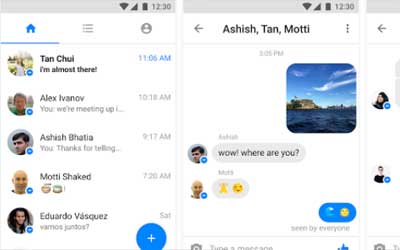
Messenger Lite has a simple and neat user interface that consists of three tabs: Home, Contacts, and Profile. You can swipe left or right to switch between them. The Home tab shows your existing chats, the Contacts tab shows your online and offline friends, and the Profile tab lets you adjust your notification settings, look at your message requests, switch accounts, and report any issues.

The main features and benefits of Messenger Lite

With Messenger Lite, you can enjoy the following features and benefits:

  • Send and receive messages, images, voice notes, and stickers with your Facebook friends or phone contacts.
  • Make and receive audio calls using Wi-Fi or data with high-quality sound.
  • Use emojis to express your emotions and reactions.
  • See when your messages are delivered and read.
  • Use less data, memory, and battery than Messenger.
  • Save storage space on your device as Messenger Lite takes up only about 25MB compared to Messenger’s 200MB.
  • Work well on slow or unstable internet connections as well as older Android devices.

The drawbacks and limitations of Messenger Lite

However, Messenger Lite also has some drawbacks and limitations that you should be aware of:

  • You cannot make or receive video calls with Messenger Lite. You will need to use another app for video chatting.
  • You cannot use end-to-end encryption with Secret Conversations on Messenger Lite. You will need to use another app for secure messaging.
  • You cannot send or receive animated stickers, GIFs, or other media files on Messenger Lite. You will only see static stickers.
  • You cannot play games, use bots, or access other advanced features on Messenger Lite. You will need to use the full-fledged Messenger app for these functions.
  • You cannot customize your chats with different colors, themes, or nicknames on Messenger Lite. You will only see the default blue color scheme.

How to download and install Messenger Lite APK?

If you want to try Messenger Lite on your Android device, you can download and install it in two ways:

Download from Google Play or APK websites

The easiest way to get Messenger Lite is to download it from Google Play Store. Just search for “Messenger Lite” in the store and tap on “Install”. Alternatively, you can also download the APK file from various websites such as APKCombo, TechSpot, or APKPure. Just make sure to download the APK file from a trusted and secure source. You can also scan the file with an antivirus app before installing it.

Install and launch the app on your device

Once you have downloaded the APK file, you can install it on your device by following these steps:

  1. Go to your device’s Settings and enable the option to install apps from unknown sources. This may vary depending on your device model and Android version.
  2. Locate the APK file in your device’s file manager and tap on it to start the installation process.
  3. Follow the on-screen instructions and grant the necessary permissions to the app.
  4. Wait for the installation to complete and then tap on “Open” to launch the app.

Log in with your Facebook account or phone number

After launching the app, you will need to log in with your Facebook account or phone number. You can choose either option depending on your preference. If you log in with your Facebook account, you will be able to see all your Facebook friends who use Messenger or Messenger Lite. If you log in with your phone number, you will be able to see all your phone contacts who use Messenger or Messenger Lite. You can also sync your contacts with the app to find more people to chat with.

How to use Messenger Lite for messaging and calling?

Once you have logged in, you can start using Messenger Lite for messaging and calling. Here are some tips on how to use the app:

Send and receive texts, photos, voice notes, and stickers

To send a message, tap on the “+” icon at the bottom right corner of the Home tab and select a contact or a group chat. You can also search for a contact or a group chat by typing their name in the search bar at the top of the Home tab. To send a text, type your message in the text box at the bottom of the chat screen and tap on the “Send” icon. To send a photo, tap on the “Camera” icon next to the text box and either take a new photo or choose one from your gallery. To send a voice note, tap and hold on the “Microphone” icon next to the text box and record your message. To send a sticker, tap on the “Smiley” icon next to the text box and choose a sticker from the available options. You can also download more stickers from the sticker store by tapping on the “+” icon at the top of the sticker screen.

To receive a message, you will see a notification on your device’s screen or hear a sound alert. You can also see a badge icon on the app’s icon indicating the number of unread messages. To open a message, tap on it from the Home tab or swipe down from the notification bar. You can also reply to a message directly from the notification bar by tapping on “Reply”. To see when your message was delivered and read, look for the check marks next to your message. A gray check mark means that your message was sent, a blue check mark means that your message was delivered, and two blue check marks mean that your message was read.

Make and receive audio calls using Wi-Fi or data

To make an audio call, tap on the “Phone” icon at the top right corner of any chat screen. You can also make a group call by tapping on the “Phone” icon at the top of any group chat screen. You can also search for a contact or a group chat by typing their name in the search bar at the top of the Contacts tab. To make a call, you will need to have a Wi-Fi or data connection. You can also use Messenger Lite to call people who don’t have the app by using their phone number.

To receive an audio call, you will see a notification on your device’s screen or hear a sound alert. You can also see a badge icon on the app’s icon indicating the number of missed calls. To answer a call, swipe right on the notification or tap on the “Answer” button. To decline a call, swipe left on the notification or tap on the “Decline” button. To mute or unmute your microphone, tap on the “Microphone” icon during a call. To end a call, tap on the “End” icon.

Manage your contacts, notifications, and settings

To manage your contacts, you can add or remove people from your chats by tapping on the “Info” icon at the top right corner of any chat screen. You can also block or unblock people by tapping on their name and selecting the “Block” or “Unblock” option. To manage your notifications, you can turn them on or off by tapping on the “Notifications” option in the Profile tab. You can also customize your notification sound and vibration by tapping on the “Sound & Vibration” option. To manage your settings, you can change your language, switch accounts, report a problem, or log out by tapping on the corresponding options in the Profile tab.

Conclusion

Messenger Lite is a great alternative to Messenger if you want to save data, memory, and battery while still enjoying the basic features of messaging and calling. It is easy to download, install, and use on your Android device. It is also compatible with older devices and slow internet connections. However, it also has some drawbacks and limitations that you should consider before switching to it. You will not be able to make video calls, use encryption, send animated stickers, play games, or access other advanced features with Messenger Lite. You will also not be able to customize your chats with different colors, themes, or nicknames.

If you are interested in trying Messenger Lite, you can download it from Google Play Store or APK websites. Just make sure to download it from a trusted and secure source. You can also scan the file with an antivirus app before installing it. Once you have installed it, you can log in with your Facebook account or phone number and start chatting and calling with your friends.

We hope this article has helped you learn more about Messenger Lite and how to use it for your communication needs. If you have any questions or feedback, please let us know in the comments below. Thank you for reading!

FAQs

  • Q: Is Messenger Lite safe to use?
  • A: Messenger Lite is safe to use as long as you download it from a trusted and secure source such as Google Play Store or APK websites. You should also scan the file with an antivirus app before installing it. However, you should be aware that Messenger Lite does not use end-to-end encryption for your messages and calls, which means that they could be intercepted by third parties.
  • Q: How do I update Messenger Lite?
  • A: You can update Messenger Lite by going to Google Play Store and tapping on the “Update” button next to the app’s name. Alternatively, you can also download the latest version of the APK file from APK websites and install it over the existing one.
  • Q: Can I use Messenger Lite without Facebook?
  • A: Yes, you can use Messenger Lite without Facebook by logging in with your phone number instead of your Facebook account. However, you will not be able to see your Facebook friends who use Messenger or Messenger Lite unless they also log in with their phone numbers.
  • Q: Can I use Messenger Lite on my PC?
  • A: No, you cannot use Messenger Lite on your PC as it is only available for Android devices. However, you can use Facebook’s web version of Messenger by going to messenger.com on your browser.
  • Q: Can I use both Messenger and Messenger Lite on my device?
  • A: Yes, you can use both Messenger and Messenger Lite on your device as they are separate apps that do not interfere with each other. However, you may want to disable notifications for one of them to avoid getting duplicate alerts.

bc1a9a207d

here2
CONTENT.php Template-parts
here1


Messenger Lite APK Download Latest Version: What You Need to Know

If you are looking for a fast and simple way to communicate with your Facebook friends, you might want to try Messenger Lite. Messenger Lite is a stripped-down version of Facebook Messenger that offers the essential features of messaging and calling without the extra bells and whistles. In this article, we will tell you what Messenger Lite is, how to download and install it on your Android device, and how to use it for your communication needs.

What is Messenger Lite?

Messenger Lite is a lightweight version of Facebook Messenger that was launched in 2016 for developing markets with low-bandwidth internet connections. It is designed to consume less data, memory, and battery than the full-fledged Messenger app. It is also compatible with older Android devices that run on Android 4.4 or higher.

A lightweight version of Facebook Messenger

Messenger Lite has a simple and neat user interface that consists of three tabs: Home, Contacts, and Profile. You can swipe left or right to switch between them. The Home tab shows your existing chats, the Contacts tab shows your online and offline friends, and the Profile tab lets you adjust your notification settings, look at your message requests, switch accounts, and report any issues.

The main features and benefits of Messenger Lite

With Messenger Lite, you can enjoy the following features and benefits:

  • Send and receive messages, images, voice notes, and stickers with your Facebook friends or phone contacts.
  • Make and receive audio calls using Wi-Fi or data with high-quality sound.
  • Use emojis to express your emotions and reactions.
  • See when your messages are delivered and read.
  • Use less data, memory, and battery than Messenger.
  • Save storage space on your device as Messenger Lite takes up only about 25MB compared to Messenger’s 200MB.
  • Work well on slow or unstable internet connections as well as older Android devices.

The drawbacks and limitations of Messenger Lite

However, Messenger Lite also has some drawbacks and limitations that you should be aware of:

  • You cannot make or receive video calls with Messenger Lite. You will need to use another app for video chatting.
  • You cannot use end-to-end encryption with Secret Conversations on Messenger Lite. You will need to use another app for secure messaging.
  • You cannot send or receive animated stickers, GIFs, or other media files on Messenger Lite. You will only see static stickers.
  • You cannot play games, use bots, or access other advanced features on Messenger Lite. You will need to use the full-fledged Messenger app for these functions.
  • You cannot customize your chats with different colors, themes, or nicknames on Messenger Lite. You will only see the default blue color scheme.

How to download and install Messenger Lite APK?

If you want to try Messenger Lite on your Android device, you can download and install it in two ways:

Download from Google Play or APK websites

The easiest way to get Messenger Lite is to download it from Google Play Store. Just search for “Messenger Lite” in the store and tap on “Install”. Alternatively, you can also download the APK file from various websites such as APKCombo, TechSpot, or APKPure. Just make sure to download the APK file from a trusted and secure source. You can also scan the file with an antivirus app before installing it.

Install and launch the app on your device

Once you have downloaded the APK file, you can install it on your device by following these steps:

  1. Go to your device’s Settings and enable the option to install apps from unknown sources. This may vary depending on your device model and Android version.
  2. Locate the APK file in your device’s file manager and tap on it to start the installation process.
  3. Follow the on-screen instructions and grant the necessary permissions to the app.
  4. Wait for the installation to complete and then tap on “Open” to launch the app.

Log in with your Facebook account or phone number

After launching the app, you will need to log in with your Facebook account or phone number. You can choose either option depending on your preference. If you log in with your Facebook account, you will be able to see all your Facebook friends who use Messenger or Messenger Lite. If you log in with your phone number, you will be able to see all your phone contacts who use Messenger or Messenger Lite. You can also sync your contacts with the app to find more people to chat with.

How to use Messenger Lite for messaging and calling?

Once you have logged in, you can start using Messenger Lite for messaging and calling. Here are some tips on how to use the app:

Send and receive texts, photos, voice notes, and stickers

To send a message, tap on the “+” icon at the bottom right corner of the Home tab and select a contact or a group chat. You can also search for a contact or a group chat by typing their name in the search bar at the top of the Home tab. To send a text, type your message in the text box at the bottom of the chat screen and tap on the “Send” icon. To send a photo, tap on the “Camera” icon next to the text box and either take a new photo or choose one from your gallery. To send a voice note, tap and hold on the “Microphone” icon next to the text box and record your message. To send a sticker, tap on the “Smiley” icon next to the text box and choose a sticker from the available options. You can also download more stickers from the sticker store by tapping on the “+” icon at the top of the sticker screen.

To receive a message, you will see a notification on your device’s screen or hear a sound alert. You can also see a badge icon on the app’s icon indicating the number of unread messages. To open a message, tap on it from the Home tab or swipe down from the notification bar. You can also reply to a message directly from the notification bar by tapping on “Reply”. To see when your message was delivered and read, look for the check marks next to your message. A gray check mark means that your message was sent, a blue check mark means that your message was delivered, and two blue check marks mean that your message was read.

Make and receive audio calls using Wi-Fi or data

To make an audio call, tap on the “Phone” icon at the top right corner of any chat screen. You can also make a group call by tapping on the “Phone” icon at the top of any group chat screen. You can also search for a contact or a group chat by typing their name in the search bar at the top of the Contacts tab. To make a call, you will need to have a Wi-Fi or data connection. You can also use Messenger Lite to call people who don’t have the app by using their phone number.

To receive an audio call, you will see a notification on your device’s screen or hear a sound alert. You can also see a badge icon on the app’s icon indicating the number of missed calls. To answer a call, swipe right on the notification or tap on the “Answer” button. To decline a call, swipe left on the notification or tap on the “Decline” button. To mute or unmute your microphone, tap on the “Microphone” icon during a call. To end a call, tap on the “End” icon.

Manage your contacts, notifications, and settings

To manage your contacts, you can add or remove people from your chats by tapping on the “Info” icon at the top right corner of any chat screen. You can also block or unblock people by tapping on their name and selecting the “Block” or “Unblock” option. To manage your notifications, you can turn them on or off by tapping on the “Notifications” option in the Profile tab. You can also customize your notification sound and vibration by tapping on the “Sound & Vibration” option. To manage your settings, you can change your language, switch accounts, report a problem, or log out by tapping on the corresponding options in the Profile tab.

Conclusion

Messenger Lite is a great alternative to Messenger if you want to save data, memory, and battery while still enjoying the basic features of messaging and calling. It is easy to download, install, and use on your Android device. It is also compatible with older devices and slow internet connections. However, it also has some drawbacks and limitations that you should consider before switching to it. You will not be able to make video calls, use encryption, send animated stickers, play games, or access other advanced features with Messenger Lite. You will also not be able to customize your chats with different colors, themes, or nicknames.

If you are interested in trying Messenger Lite, you can download it from Google Play Store or APK websites. Just make sure to download it from a trusted and secure source. You can also scan the file with an antivirus app before installing it. Once you have installed it, you can log in with your Facebook account or phone number and start chatting and calling with your friends.

We hope this article has helped you learn more about Messenger Lite and how to use it for your communication needs. If you have any questions or feedback, please let us know in the comments below. Thank you for reading!

FAQs

  • Q: Is Messenger Lite safe to use?
  • A: Messenger Lite is safe to use as long as you download it from a trusted and secure source such as Google Play Store or APK websites. You should also scan the file with an antivirus app before installing it. However, you should be aware that Messenger Lite does not use end-to-end encryption for your messages and calls, which means that they could be intercepted by third parties.
  • Q: How do I update Messenger Lite?
  • A: You can update Messenger Lite by going to Google Play Store and tapping on the “Update” button next to the app’s name. Alternatively, you can also download the latest version of the APK file from APK websites and install it over the existing one.
  • Q: Can I use Messenger Lite without Facebook?
  • A: Yes, you can use Messenger Lite without Facebook by logging in with your phone number instead of your Facebook account. However, you will not be able to see your Facebook friends who use Messenger or Messenger Lite unless they also log in with their phone numbers.
  • Q: Can I use Messenger Lite on my PC?
  • A: No, you cannot use Messenger Lite on your PC as it is only available for Android devices. However, you can use Facebook’s web version of Messenger by going to messenger.com on your browser.
  • Q: Can I use both Messenger and Messenger Lite on my device?
  • A: Yes, you can use both Messenger and Messenger Lite on your device as they are separate apps that do not interfere with each other. However, you may want to disable notifications for one of them to avoid getting duplicate alerts.

bc1a9a207d

here2
CONTENT.php Template-parts
here1


Messenger Lite APK Download Latest Version: What You Need to Know

If you are looking for a fast and simple way to communicate with your Facebook friends, you might want to try Messenger Lite. Messenger Lite is a stripped-down version of Facebook Messenger that offers the essential features of messaging and calling without the extra bells and whistles. In this article, we will tell you what Messenger Lite is, how to download and install it on your Android device, and how to use it for your communication needs.

What is Messenger Lite?

Messenger Lite is a lightweight version of Facebook Messenger that was launched in 2016 for developing markets with low-bandwidth internet connections. It is designed to consume less data, memory, and battery than the full-fledged Messenger app. It is also compatible with older Android devices that run on Android 4.4 or higher.

A lightweight version of Facebook Messenger

Messenger Lite has a simple and neat user interface that consists of three tabs: Home, Contacts, and Profile. You can swipe left or right to switch between them. The Home tab shows your existing chats, the Contacts tab shows your online and offline friends, and the Profile tab lets you adjust your notification settings, look at your message requests, switch accounts, and report any issues.

The main features and benefits of Messenger Lite

With Messenger Lite, you can enjoy the following features and benefits:

  • Send and receive messages, images, voice notes, and stickers with your Facebook friends or phone contacts.
  • Make and receive audio calls using Wi-Fi or data with high-quality sound.
  • Use emojis to express your emotions and reactions.
  • See when your messages are delivered and read.
  • Use less data, memory, and battery than Messenger.
  • Save storage space on your device as Messenger Lite takes up only about 25MB compared to Messenger’s 200MB.
  • Work well on slow or unstable internet connections as well as older Android devices.

The drawbacks and limitations of Messenger Lite

However, Messenger Lite also has some drawbacks and limitations that you should be aware of:

  • You cannot make or receive video calls with Messenger Lite. You will need to use another app for video chatting.
  • You cannot use end-to-end encryption with Secret Conversations on Messenger Lite. You will need to use another app for secure messaging.
  • You cannot send or receive animated stickers, GIFs, or other media files on Messenger Lite. You will only see static stickers.
  • You cannot play games, use bots, or access other advanced features on Messenger Lite. You will need to use the full-fledged Messenger app for these functions.
  • You cannot customize your chats with different colors, themes, or nicknames on Messenger Lite. You will only see the default blue color scheme.

How to download and install Messenger Lite APK?

If you want to try Messenger Lite on your Android device, you can download and install it in two ways:

Download from Google Play or APK websites

The easiest way to get Messenger Lite is to download it from Google Play Store. Just search for “Messenger Lite” in the store and tap on “Install”. Alternatively, you can also download the APK file from various websites such as APKCombo, TechSpot, or APKPure. Just make sure to download the APK file from a trusted and secure source. You can also scan the file with an antivirus app before installing it.

Install and launch the app on your device

Once you have downloaded the APK file, you can install it on your device by following these steps:

  1. Go to your device’s Settings and enable the option to install apps from unknown sources. This may vary depending on your device model and Android version.
  2. Locate the APK file in your device’s file manager and tap on it to start the installation process.
  3. Follow the on-screen instructions and grant the necessary permissions to the app.
  4. Wait for the installation to complete and then tap on “Open” to launch the app.

Log in with your Facebook account or phone number

After launching the app, you will need to log in with your Facebook account or phone number. You can choose either option depending on your preference. If you log in with your Facebook account, you will be able to see all your Facebook friends who use Messenger or Messenger Lite. If you log in with your phone number, you will be able to see all your phone contacts who use Messenger or Messenger Lite. You can also sync your contacts with the app to find more people to chat with.

How to use Messenger Lite for messaging and calling?

Once you have logged in, you can start using Messenger Lite for messaging and calling. Here are some tips on how to use the app:

Send and receive texts, photos, voice notes, and stickers

To send a message, tap on the “+” icon at the bottom right corner of the Home tab and select a contact or a group chat. You can also search for a contact or a group chat by typing their name in the search bar at the top of the Home tab. To send a text, type your message in the text box at the bottom of the chat screen and tap on the “Send” icon. To send a photo, tap on the “Camera” icon next to the text box and either take a new photo or choose one from your gallery. To send a voice note, tap and hold on the “Microphone” icon next to the text box and record your message. To send a sticker, tap on the “Smiley” icon next to the text box and choose a sticker from the available options. You can also download more stickers from the sticker store by tapping on the “+” icon at the top of the sticker screen.

To receive a message, you will see a notification on your device’s screen or hear a sound alert. You can also see a badge icon on the app’s icon indicating the number of unread messages. To open a message, tap on it from the Home tab or swipe down from the notification bar. You can also reply to a message directly from the notification bar by tapping on “Reply”. To see when your message was delivered and read, look for the check marks next to your message. A gray check mark means that your message was sent, a blue check mark means that your message was delivered, and two blue check marks mean that your message was read.

Make and receive audio calls using Wi-Fi or data

To make an audio call, tap on the “Phone” icon at the top right corner of any chat screen. You can also make a group call by tapping on the “Phone” icon at the top of any group chat screen. You can also search for a contact or a group chat by typing their name in the search bar at the top of the Contacts tab. To make a call, you will need to have a Wi-Fi or data connection. You can also use Messenger Lite to call people who don’t have the app by using their phone number.

To receive an audio call, you will see a notification on your device’s screen or hear a sound alert. You can also see a badge icon on the app’s icon indicating the number of missed calls. To answer a call, swipe right on the notification or tap on the “Answer” button. To decline a call, swipe left on the notification or tap on the “Decline” button. To mute or unmute your microphone, tap on the “Microphone” icon during a call. To end a call, tap on the “End” icon.

Manage your contacts, notifications, and settings

To manage your contacts, you can add or remove people from your chats by tapping on the “Info” icon at the top right corner of any chat screen. You can also block or unblock people by tapping on their name and selecting the “Block” or “Unblock” option. To manage your notifications, you can turn them on or off by tapping on the “Notifications” option in the Profile tab. You can also customize your notification sound and vibration by tapping on the “Sound & Vibration” option. To manage your settings, you can change your language, switch accounts, report a problem, or log out by tapping on the corresponding options in the Profile tab.

Conclusion

Messenger Lite is a great alternative to Messenger if you want to save data, memory, and battery while still enjoying the basic features of messaging and calling. It is easy to download, install, and use on your Android device. It is also compatible with older devices and slow internet connections. However, it also has some drawbacks and limitations that you should consider before switching to it. You will not be able to make video calls, use encryption, send animated stickers, play games, or access other advanced features with Messenger Lite. You will also not be able to customize your chats with different colors, themes, or nicknames.

If you are interested in trying Messenger Lite, you can download it from Google Play Store or APK websites. Just make sure to download it from a trusted and secure source. You can also scan the file with an antivirus app before installing it. Once you have installed it, you can log in with your Facebook account or phone number and start chatting and calling with your friends.

We hope this article has helped you learn more about Messenger Lite and how to use it for your communication needs. If you have any questions or feedback, please let us know in the comments below. Thank you for reading!

FAQs

  • Q: Is Messenger Lite safe to use?
  • A: Messenger Lite is safe to use as long as you download it from a trusted and secure source such as Google Play Store or APK websites. You should also scan the file with an antivirus app before installing it. However, you should be aware that Messenger Lite does not use end-to-end encryption for your messages and calls, which means that they could be intercepted by third parties.
  • Q: How do I update Messenger Lite?
  • A: You can update Messenger Lite by going to Google Play Store and tapping on the “Update” button next to the app’s name. Alternatively, you can also download the latest version of the APK file from APK websites and install it over the existing one.
  • Q: Can I use Messenger Lite without Facebook?
  • A: Yes, you can use Messenger Lite without Facebook by logging in with your phone number instead of your Facebook account. However, you will not be able to see your Facebook friends who use Messenger or Messenger Lite unless they also log in with their phone numbers.
  • Q: Can I use Messenger Lite on my PC?
  • A: No, you cannot use Messenger Lite on your PC as it is only available for Android devices. However, you can use Facebook’s web version of Messenger by going to messenger.com on your browser.
  • Q: Can I use both Messenger and Messenger Lite on my device?
  • A: Yes, you can use both Messenger and Messenger Lite on your device as they are separate apps that do not interfere with each other. However, you may want to disable notifications for one of them to avoid getting duplicate alerts.

bc1a9a207d

here2